Docker for Beginners: Why It Quietly Changes How You Ship Software
A friendly, jargon-light walkthrough of what Docker actually does, why people get evangelical about it, and how to ship your first container without copy-pasting a tutorial you don't understand.
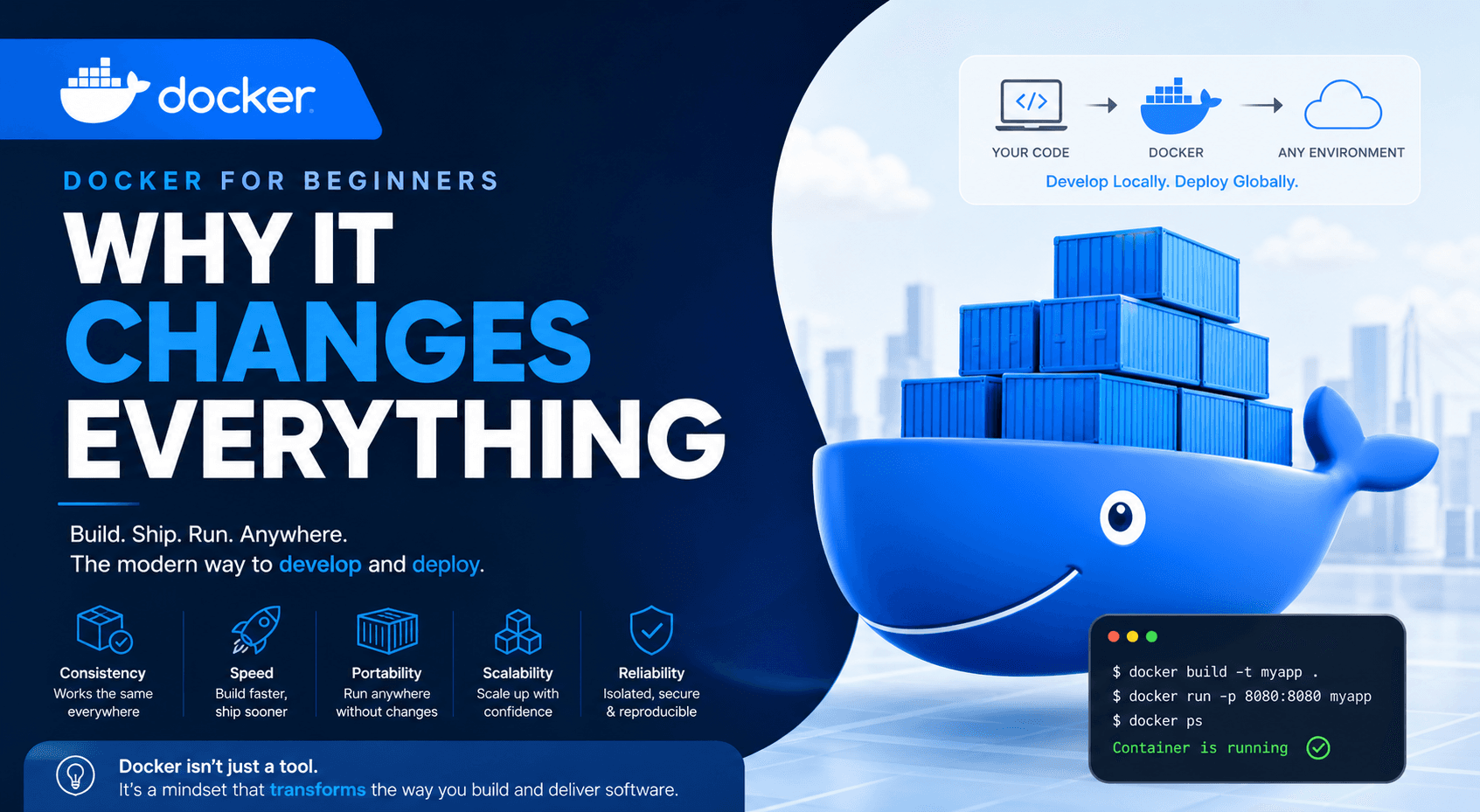
The first time someone tried to explain Docker to me, they used the word "container" eleven times in the first minute and I nodded along understanding nothing. If that's where you are, this post is for you.
By the end you'll know what Docker actually does, why people get weirdly evangelical about it, and how to ship your first container without copy-pasting a tutorial you don't understand.
The problem Docker solves
Picture this. You build a web app on your laptop. It works. You send it to a teammate. It breaks. You spend two hours figuring out they have a different Node version. You fix it. You deploy it to a server. It breaks differently. The server has a different Linux distro. You fix it. You deploy to staging. The database client library is missing. You install it. Production goes live. It breaks at 2 AM because the production server has a slightly older OpenSSL.
Every developer has lived some version of this. The phrase that captures it perfectly:
"It works on my machine."
Docker's pitch is simple: stop shipping code, start shipping the entire environment.
What a container actually is
A container is a sealed bag. Inside the bag: your code, the exact runtime version it needs (Node 20.11.0, not "Node-ish"), the system libraries, the config files, the startup commands. Everything required to run.
You hand someone the bag. They run it. It works. The bag is the same on your laptop, your teammate's laptop, the staging server, and production.
  Without Docker                With Docker
  ──────────────                ───────────
  ┌────────────────┐            ┌────────────────┐
  │ Your code      │            │ ┌────────────┐ │
  │   ↓ uses       │            │ │ Container  │ │
  │ Node 20.11     │            │ │  - code    │ │
  │   ↓ uses       │            │ │  - Node 20 │ │
  │ glibc 2.36     │            │ │  - libs    │ │
  │   ↓ uses       │            │ │  - config  │ │
  │ Ubuntu 22.04   │            │ └────────────┘ │
  │   ↓ uses       │            │      ↓ runs on │
  │ a kernel       │            │  any host OS   │
  └────────────────┘            └────────────────┘
  Hope every layer matches.     Bag is identical
                                everywhere.
The bag itself is called an image. When you run an image, the running instance is a container. That distinction confused me for months — image is the recipe, container is the cake.
Why this isn't just a virtual machine
Fair question. VMs solved a similar problem twenty years ago — "let me run a whole OS inside another OS." Why not just use a VM?
| Virtual machine | Docker container | |
|---|---|---|
| Boots a full OS | Yes | No |
| Startup time | 30–60 seconds | < 1 second |
| Disk size | 5–50 GB | 50–500 MB |
| RAM overhead | 1–4 GB per VM | ~10 MB |
| Isolation | Strong (full OS) | Strong (process namespaces) |
A VM is "a whole computer pretending to be inside another computer." A container is "your app and its dependencies, packaged so they can't accidentally touch other apps." The container shares the host's Linux kernel — it doesn't bring its own. That's where all the speed and size wins come from.
For 95% of "I want my app to run identically everywhere" use cases, containers are the right tool.
The three-word mental model
If you remember three words, you've got Docker:
- Image — a frozen snapshot of "everything needed to run your app." A file on disk.
- Container — a running instance of an image. Like a process, but isolated.
- Dockerfile — a recipe. A text file that describes how to build an image.
That's it. Everything else is variations on those three.
Your first Dockerfile, explained line by line
Let's containerize a tiny Node.js app. Create a file called Dockerfile (no extension) next to your package.json:
# 1. Start from an official Node 20 image (someone else already built this)
FROM node:20-alpine

# 2. Set the working directory inside the container
WORKDIR /app

# 3. Copy package files first (Docker caches this layer if they don't change)
COPY package*.json ./

# 4. Install dependencies inside the container
RUN npm ci --only=production

# 5. Copy the rest of your code
COPY . .

# 6. Tell Docker which port the app listens on
EXPOSE 3000

# 7. The command that runs when the container starts
CMD ["node", "server.js"]
Seven lines. Three of them are comments. That is a complete production-grade build for a small Node app.
The trick that took me longest to internalize: COPY package*.json happens before COPY . . on purpose. Docker caches each step. If your code changes but your dependencies don't, Docker reuses the cached npm ci layer and your build takes 2 seconds instead of 90.
Build and run in two commands
# Build the image — read the Dockerfile, produce an image tagged "myapp"
docker build -t myapp .

# Run a container from that image, mapping host port 3000 → container port 3000
docker run -p 3000:3000 myapp
Open http://localhost:3000. You're now running your app inside a container. That same image, copied to any other machine with Docker, will run identically.
This is the moment the "works on my machine" problem dies.
The everyday commands you'll actually use
You don't need to memorize the whole CLI. These six get you 90% of the way:
docker build -t name .          # build image from Dockerfile
docker run -p 3000:3000 name    # run a container
docker ps                       # list running containers
docker logs <id>                # see what a container is printing
docker stop <id>                # stop a container
docker exec -it <id> sh         # open a shell inside a running container
docker exec -it ... sh is the one that feels like magic the first time you use it. You're literally ssh-ing into your running app.
When you have more than one service: docker-compose
A real app is rarely one container. You probably need an app and a database and maybe a Redis. Running three docker run commands and remembering which order they start in is painful.
docker-compose.yml is a file that describes a whole multi-container stack:
services:
  app:
    build: .
    ports:
      - "3000:3000"
    environment:
      - DATABASE_URL=postgres://postgres:secret@db:5432/myapp
    depends_on:
      - db

  db:
    image: postgres:16
    environment:
      - POSTGRES_PASSWORD=secret
      - POSTGRES_DB=myapp
    volumes:
      - db-data:/var/lib/postgresql/data

volumes:
  db-data:
Then:
docker compose up        # start everything
docker compose down      # stop everything
One command brings up your app, your database, the network between them, and a persistent volume for the database. New laptop, new team member, new server — same single command. This is when Docker stops feeling like overhead and starts feeling like a superpower.
Where the value really shows up
It took me a while to feel why Docker matters beyond "no version conflicts." Five places it pays off in real life:
- Onboarding a new teammate. "Clone the repo, run
docker compose up." Done. No 47-step README that's three months out of date. - Reproducible bugs. "It works in dev, breaks in prod" almost vanishes when dev is prod, packaged.
- Trying things without polluting your laptop. Want to try Postgres?
docker run postgres. Want to delete it cleanly?docker rm. No leftover background services. - Deployments that aren't terrifying. Build once, run that exact image in staging and prod. The thing you tested is the thing that ships.
- CI/CD that just works. GitHub Actions, GitLab CI, every modern CI runs your tests inside a container by default. Docker is the lingua franca.
The mistakes I made early
Saving you the hours I lost:
- Putting
node_modulesin the image. Use a.dockerignorefile. Listnode_modules,.git,.env. Otherwise your build context is huge and slow. - Using
latesttags in production.FROM node:latestwill silently break your build the day Node ships a new major. Pin versions:FROM node:20.11-alpine. - Running as root inside the container. Add a
USER nodeline. If your container is ever compromised, a non-root user limits the damage. - Storing secrets in the Dockerfile. Never. Use
--env-fileor a secrets manager. Anything in a Dockerfile is in the image forever, even if you "delete" it later. - Not learning the difference between volumes and bind mounts. Bind mounts (
-v ./code:/app) are great in dev. Volumes (-v db-data:/var/lib/postgresql/data) are for persistent state in prod. Mixing them up loses data.
What Docker doesn't fix
To stay honest:
- It doesn't make a slow app fast.
- It doesn't replace a good README — it replaces the setup section of one.
- It adds a learning curve. Expect to lose a weekend understanding it before it pays off.
- For the simplest static sites, it's overkill. Use a CDN.
- Running Docker on Apple Silicon for x86 images is slower than people admit.
A 30-minute path from zero
If you want to actually learn this, not just nod at it, here's the sequence that worked for me:
- Install Docker Desktop (10 min).
- Run
docker run -it ubuntu bash. You're now in an Ubuntu shell. Typeexit. Marvel briefly. - Containerize one tiny app you've already built. Any language. Use the seven-line Dockerfile pattern above.
- Add a database via
docker compose up. Connect from your app. - Push the image to Docker Hub so a friend can
docker run yourname/app.
That's a weekend. After it, Docker stops being intimidating and becomes the boring tool you reach for whenever you want something to run identically somewhere else.
The takeaway
Docker isn't a virtualization technology. It's a packaging contract. It says "if I hand you this image, you can run it without knowing or caring what's inside." That's a small idea with enormous knock-on effects: easier onboarding, calmer deploys, reproducible bugs, faster CI, lower ops anxiety.
It feels like overhead on day one. By month three, you'll wonder how you ever shipped software without it.